Data Editing#
Introduction#
After the Barcode Reader decodes successfully, it will obtain a string of data. This string of data can be numbers, English, symbols, etc., and it can also be Chinese characters for QR codes. This string of data is the data information contained in the barcode. In practical applications, you may not only need the data information of the barcode, but you may also need to know which type of barcode the string of data information obtained comes from, or you need to know on which day the barcode information was scanned, or you may need to automatically wrap the text of the barcode and enter after reading a barcode. These requirements may not be included in the data information of the barcode.
Encoding this information directly in a barcode increases its length and reduces flexibility. A Prefix/Suffix can instead be added to the Barcode Data at output time, allowing the added content to be changed or disabled without modifying the barcode itself.
You can add or remove prefix or suffix characters for one Symbology or for All Symbologies.
Use ASCII Conversion Table to add any prefix or suffix
Add prefix or suffix characters in the order they appear in the output.
When configuring a specific symbology (or All Symbologies), add prefix or suffix characters to the symbology corresponding to the serial number of the specific barcode type.
The maximum size of a prefix or suffix configuration is 200 characters.
Prefix/suffix addition#
Scan the “Add Prefix” or “Add Suffix” barcode.
Determine the symbology to be prefixed or suffixed, determining the 2-digit hexadecimal value from 1D Symbologies. For example, for Code 11, the barcode type sequence number is “h” and the Hex ID is
68.Scan 2 hexadecimal digits in Appendix Charts, or scan
9,9to apply to all barcodes.Determine the hexadecimal value of the prefix/suffix from ASCII Conversion Table.
Scan Appendix Charts for a 2-digit hexadecimal value.
Repeat steps 4 and 5 for each prefix/suffix character.
To add a barcode serial number, please scan
5,C,8,0.
To add AIM I.D., scan 5, C, 8, 1.
To add a backslash (), scan 5, C, 5, C.
Note
To add the backslash () in step 7, 5C must be scanned twice - once to create the leading backslash, and then to create the backslash itself.
Scan the “Save” barcode to exit and save, or scan the “Discard” barcode to exit without saving. Repeat steps 1-6 to add prefixes or suffixes to other Symbologies.
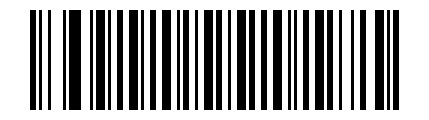
Add Prefix#
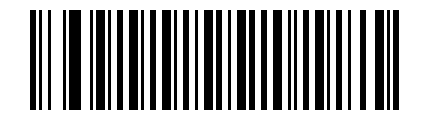
Add Suffix#
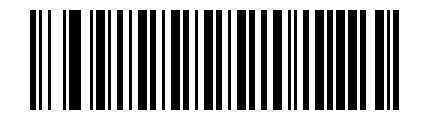
Save#
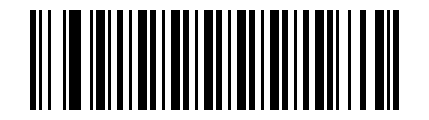
give up#
Example
Add suffix to specific Symbology
Add CR (carriage return) suffix to Code 128.
step:
Scan the “Add Suffix” barcode.
Determine the 2-digit hexadecimal value of Code 128 from 1D Symbologies:
6A.Scan the “
6”, “A” barcodes from Appendix Charts.Determine the hexadecimal value of the carriage return suffix from ASCII Conversion Table:
0D.Scan the “
0”, “D” barcode in Appendix Charts.Scan the “Save” barcode, or scan the “Abandon” barcode to exit without saving.
Add Suffix#
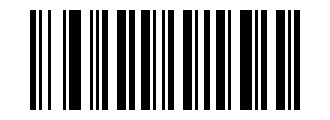
6#
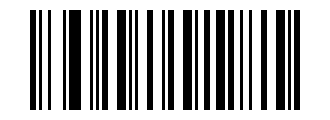
A#
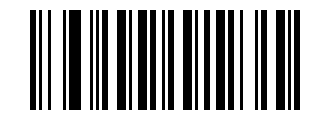
0#
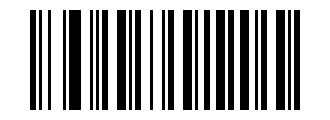
D#
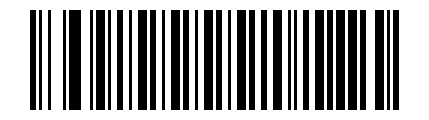
Save#
Add carriage return suffix to All Symbologies#
To add a carriage return suffix to all symbologies, please scan the following barcode. This operation first clears all current suffixes, and then adds carriage return suffixes to All Symbologies.
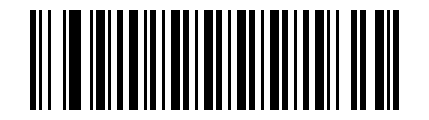
Add carriage return suffix to All Symbologies#
Add a Newline Suffix to All Symbologies#
To add a carriage return and line feed suffix to All Symbologies, please scan the following barcode. This operation first clears all current suffixes, and then adds carriage return and line feed suffixes to All Symbologies.
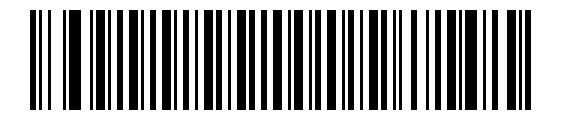
Add newline suffix to all symbologies#
Add carriage return and line feed suffix to All Symbologies#
To add a carriage return and line feed suffix to All Symbologies, please scan the following barcode. This operation first clears all current suffixes, and then adds carriage return and line feed suffixes to All Symbologies.

Add carriage return and line feed suffix to All Symbologies#
Keyboard operation#
You can configure the keyboard to perform different operations when decoding the output, such as performing automatic saving after decoding the output.
Determine the 2-digit hexadecimal value corresponding to the keyboard operation to be performed from Keyboard operation ASCII conversion, and determine the 2-digit hexadecimal value of the symbology system that needs to be set.
First scan the “Add Keyboard Action” barcode.
Then determine the order of keyboard operation and barcode output. If the keyboard operation comes first, scan the “Add Prefix” barcode. If the keyboard operation follows, scan the “Add Suffix” barcode.
Scan the corresponding 4-digit hexadecimal value in Appendix Charts according to the corresponding value (including Symbology and corresponding keyboard operation)
Scan the “Save” barcode.
Scan “End adding keyboard action”
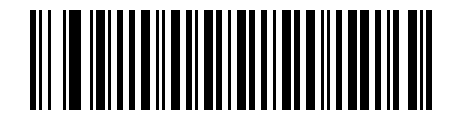
Start adding keyboard actions#
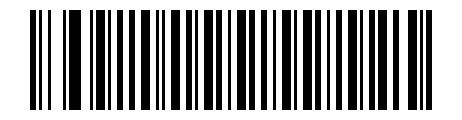
End adding keyboard operation#
Example
Add the operation of saving after decoding output for All Symbologies
First confirm the operation to be performed: save after the barcode is output, that is, add a suffix after the output barcode. Then determine the corresponding hexadecimal value according to the table in the appendix. All Symbologies correspond to “9” and “9”, and the saving operation corresponds to “1” and “3”.
After confirmation, scan the “Add Keyboard Operation” barcode, “Add Suffix” barcode, “9”,
“9”, “1”, “3”, and finally scan the “Save” barcode.
(”9” and “9” correspond to All Symbologies, and “1” and “3” correspond to decoding and outputting before saving)
Prefix/suffix clear#
Can clear the prefix/suffix of a Symbology. If a prefix/suffix of a Symbology has been added, you can scan
“Clear prefix/suffix of a symbology” barcode removes all prefix/suffix characters from this symbology. Scan “Clear all Symbology prefixes/suffixes” to delete all Symbology prefixes/suffixes.
Scan the “Clear Prefix of a Symbol” or “Clear the Suffix of a Symbol” barcode.
Determine the 2-digit hexadecimal value to clear the prefix/suffix symbology from 1D Symbologies.
Scan the 2-digit hexadecimal value in Appendix Charts; for example, scan “
9”, the “9” barcode applies to All Symbologies.Scan the “Save” barcode.
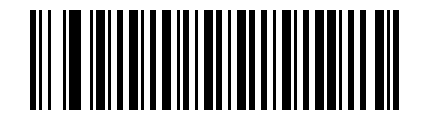
Clear the prefix of a Symbology#
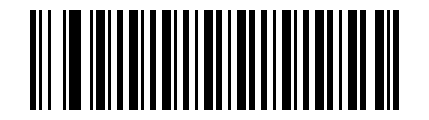
Clear the suffix of a Symbology#
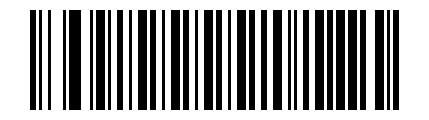
Save#
Prefix selection#
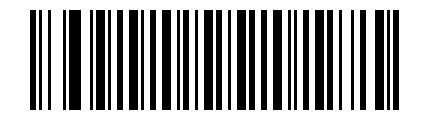
Add Prefix#
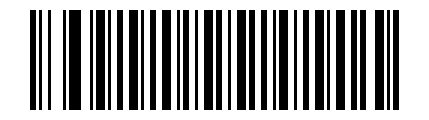
Clear all code prefixes#
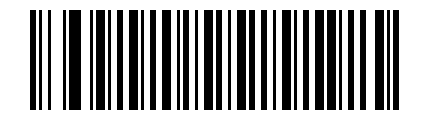
Clear the prefix of a Symbology#
Suffix selection#
Add Suffix#
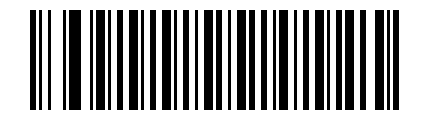
Clear all code suffixes#
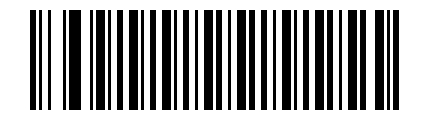
Clear the suffix of a Symbology#
Function code transmission#
When function code transmission is enabled and the output data contains function codes, the Barcode Reader will transmit the function code data to the host. Default = disabled.
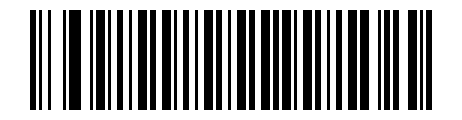
* Disable#
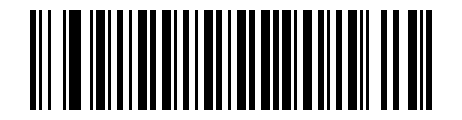
Enable#
Delayed transmission of barcode#
Delays of up to 5000 ms (in 5 ms increments) can be set for each barcode transmission. Scan the following barcode, then scan Appendix Charts for the amount of 5 ms delay, then scan the “Save” barcode.
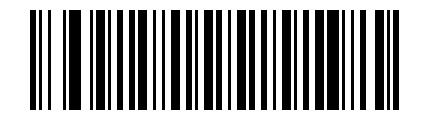
barcode delay#
To eliminate barcode transmission delays, scan the “Barcode Delay” barcode and set the delay number to 0. Use Appendix Charts and scan the “Save” barcode.
Example
Set a 100 ms delay for transmitting barcodes:
First scan the “Barcode Delay”, then scan Appendix Charts “2” “0” (100 ms / 5 ms = 20), then scan the “Save” barcode to set the 100 ms transmission barcode delay.