Transfer data using TCP client#
Note
Only applicable to Barcode Readers that support Wi-Fi transmission, such as DS2800.
Quick configuration#
Static command instructions
If the interactive HTML tool is unavailable, replace the placeholders as described in this section and verify the command.
AT+SOCK=TCPC,<port>,<host>,<port>;AT+RAP=<ssid>[,<wifi-password>]
Note
When you use third-party software to build a TCP server, you can use this tool to generate configuration code.
Demo software#
Click the link below to download the demo software: Netum Wi-Fi TCP Server
Connect#
Download the demo software and extract it to a local directory.
Open the demo software, enter the Wi‑Fi information and TCP server information that the Barcode Reader needs to connect to, and then use the Barcode Reader to scan the QR code below.
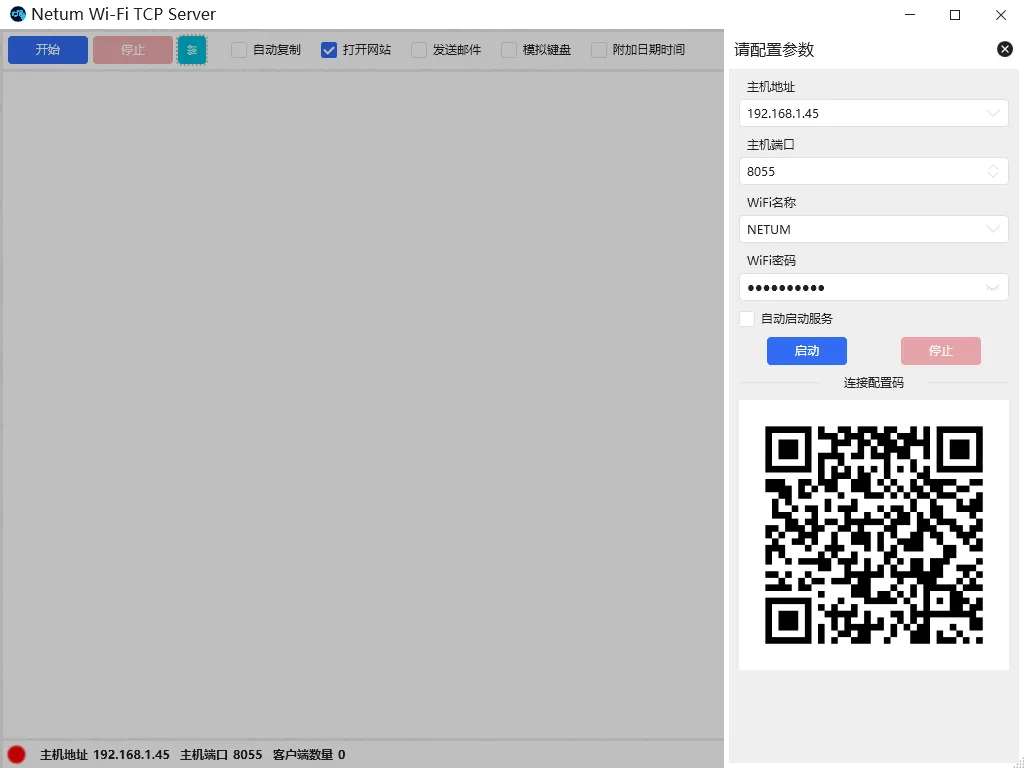
TCP server configuration QR code example#
Click Start Service, or start the TCP service programmatically.
Wait for the Barcode Reader to actively connect to the TCP service provided by the software.
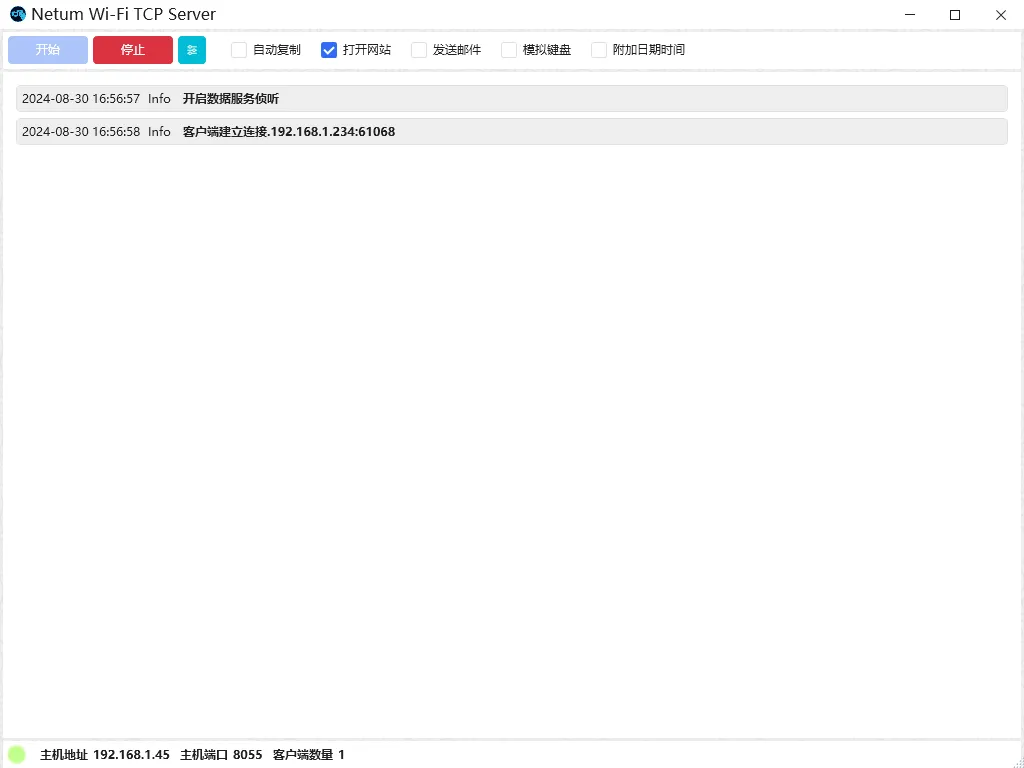
TCP server running example#
Note
Host address: The IP address of the computer where the TCP service is located.Host port: The port number that the TCP service listens on.